01-11-2026, 05:02 AM (This post was last modified: 01-11-2026, 05:47 AM by IndiePubber.)
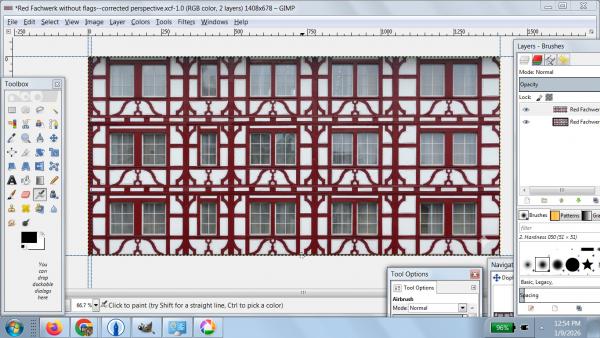
I'll be using the attached image for the background of the cover for the next novel I'm indie publishing. I want to switch the colors so the white infill areas are a certain shade of red, the dark timbers are shades of pinkish white, and the windows are something in between--- not all the same color, but a range reflecting the highlights and shadows of the original picture.
I've learned that Colors ---> Maps ---> Color Exchange might work for me. I've figured out that I can't select the From Color until I've turned off the alpha channel on the image.
But when I select the From Color, choose the To Color, and click OK, nothing happens. The photo doesn't change, even though the Edit menu gives me the option to undo the Color Exchange.
I prefer to work on my older ThinkPad touchscreen laptop where I run GIMP 2.8 on Windows 7. I also have a Windows 10 PC with GIMP 3.04. As another test, I used it to try Color Exchange on this Fachwerk photo. But again, when I click OK, I see no change. And again, the Edit menu tells me the exchange was made.
It's the same with other images I've tried.
Given all this, I have two questions:
1. Is Color Exchange the best way to do what I want here?
2. If it is, what am I failing to do, that I can't see any change in 2.8 or in 3.04? Is there another step I need to take to complete the process?
This is what I did : I made a new pink layer, layer mode HSL Color, opacity 31. Then : 'new layer from visible' and use 'Colours / Brightness-Contrast' to optimise.
01-11-2026, 10:33 AM (This post was last modified: 01-11-2026, 10:34 AM by rich2005.)
I cannot see any quick way, Color Exchange wrecks anti-aliasing, other options such as the gmic plugin no better.
I think back to basics and use layer masks for each part you want to change.
It is worth spending a little time making a good selection of the windows, even if it means each window with rectangular select in add mode. Then save that as a channel, you will need it later. Invert and save that as well.
If you color select the white-ish render almost certain to include parts of the windows so you can use the saved channel to correct that. The timber is then just that selection inverted. Layer masks come from those selections and the layer is colorized as required. That should keep some of the shading.
I get this, Gimp 3.0.6 but it is an old method just the same with Gimp 2.8
01-11-2026, 11:55 AM (This post was last modified: 01-11-2026, 11:58 AM by sallyanne.)
Here is a quicky for you
I selected the dark red and colourized it to a pinkish white colour.
Then using the 'select by colour tool ' changed the white to the pinkish. Then selected each window with the rectangle select and copied and pasted as a layer above the pink layer the changed the layer mode to 'grain merge' which still shows the insides of the windows etc
When selecting with the rectangle select make sure you click on 'add a selection to' in the tool options box.
01-12-2026, 12:51 AM (This post was last modified: 01-12-2026, 01:47 AM by IndiePubber.)
(01-11-2026, 10:33 AM)rich2005 Wrote: I cannot see any quick way, Color Exchange wrecks anti-aliasing, other options such as the gmic plugin no better.
I think back to basics and use layer masks for each part you want to change.
It is worth spending a little time making a good selection of the windows, even if it means each window with rectangular select in add mode. Then save that as a channel, you will need it later. Invert and save that as well.
If you color select the white-ish render almost certain to include parts of the windows so you can use the saved channel to correct that. The timber is then just that selection inverted. Layer masks come from those selections and the layer is colorized as required. That should keep some of the shading.
I get this, Gimp 3.0.6 but it is an old method just the same with Gimp 2.8
I'm not sure if losing anti-aliasing will matter that much, as once I get this image the color I want, I'll be reducing it and stitching several copies of it together to make an overall pattern in the background.
So even though you could be right, that I won't like the effect Color Exchange gives me, I'd still like to know how to make the tool work so I can see for myself.
That aside . . . I was thinking this might involve layer masking. The embarrassing thing is that I've done it before, but it's been so long I've forgotten how. I know, I know--- I have to get into the manual and follow the instructions like a first grader. Back to basics, as you say.
(01-11-2026, 07:51 AM)denzjos Wrote: This is what I did : I made a new pink layer, layer mode HSL Color, opacity 31. Then : 'new layer from visible' and use 'Colours / Brightness-Contrast' to optimise.
Is that something I can do in 2.8? I tried to find the Layer Mode HSL color option, but couldn't. Maybe I'm not looking in the right place.
There's a possibility I may have to edit this image in 3.04, export it as a .png, save it, then bring it back into 2.8 as a "new" photo.
(01-11-2026, 11:55 AM)sallyanne Wrote: Here is a quicky for you
I selected the dark red and colourized it to a pinkish white colour.
Then using the 'select by colour tool ' changed the white to the pinkish. Then selected each window with the rectangle select and copied and pasted as a layer above the pink layer the changed the layer mode to 'grain merge' which still shows the insides of the windows etc
When selecting with the rectangle select make sure you click on 'add a selection to' in the tool options box.
This also could be an approach. Weird thing is, when I go to Colorize, it turns everything a shade of teal green. Clearly, I need to work with it more.
Oh! I think I've figured out why I'm not seeing any difference with Color Exchange. It's because, despite how uniform this dark red and off-white appear to my naked eye, the middle click is selecting only the pixels that happen to match the one I happen to hit. So when I do the exchange, it's nearly imperceptible.
Looks like I need to figure out how to reset the thresholds.
. . . Yeah, no. Tried that. Still spotty. Color Exchange would take way too long.
01-14-2026, 05:24 AM (This post was last modified: 01-14-2026, 08:10 AM by rich2005.)
rich2005
I've got all the windows selected to a single channel. This is progress. But when you say to invert it, do you mean invert the colors? Or invert the selection? If the latter, should I delete/clear everything outside the windows?
This is the first time I've used channels, and I'm unsure how I'll be using this one, and how it relates to the layer it was made from.
Don't mind me. I'll figure it out eventually, but right now I'm like, "Ack!!"
You said, "If you color select the white-ish render . . . "
Okay, good. Should I use a high threshold to get all the whitish infill and save all that to a channel of its own? Or should I do the layer masks directly?
It's embarrassing to admit what a terrible newb I am. It'd be even more embarrassing to get into how I spent literal days this past autumn editing this photo in the most inefficient way possible, then lost it all last month because the file got corrupted and I'd neglected to save anything to my SSD. So now I'm asking all the stupid questions I should have asked before.
(01-14-2026, 05:24 AM)IndiePubber Wrote: I've got all the windows selected to a single channel. This is progress. But when you say to invert it, do you mean invert the colors? Or invert the selection? If the latter, should I delete/clear everything outside the windows?
Its inverting selections.
Quote:This is the first time I've used channels, and I'm unsure how I'll be using this one, and how it relates to the layer it was made from.
Here is an example, https://youtu.be/sPJHOZeIJtQ about 5 minutes might give you some clues and it is using Gimp 2.8.22
Quote: I'd neglected to save anything to my SSD. So now I'm asking all the stupid questions I should have asked before.
Always save and save again in Gimp .xcf format as you progress
01-31-2026, 08:02 AM (This post was last modified: 01-31-2026, 08:20 AM by IndiePubber.)
(01-14-2026, 03:38 PM)rich2005 Wrote:
(01-14-2026, 05:24 AM)IndiePubber Wrote: I've got all the windows selected to a single channel. This is progress. But when you say to invert it, do you mean invert the colors? Or invert the selection? If the latter, should I delete/clear everything outside the windows?
Its inverting selections.
Quote:This is the first time I've used channels, and I'm unsure how I'll be using this one, and how it relates to the layer it was made from.
Here is an example, https://youtu.be/sPJHOZeIJtQ about 5 minutes might give you some clues and it is using Gimp 2.8.22
Quote: I'd neglected to save anything to my SSD. So now I'm asking all the stupid questions I should have asked before.
Always save and save again in Gimp .xcf format as you progress
Thanks.
I haven't checked in recently, as I've been cleaning up a layer mask for isolating the timbering . . . and getting distracted by the weather. I'll study your example when it's less late and I have more of my wits about me.
Here's a screenshot of where I've gotten up to now. You'll notice in the Layer menu that the mask is hanging out by itself, instead of sitting next to the thumbnail of the layer it's supposed to be masking. Not sure how I managed that, but getting it where it belongs is the next step, along with using the channel I made to isolate the windows.