Thread Rating:
  • 0 Vote(s) - 0 Average
  • 1
  • 2
  • 3
  • 4
  • 5
Working with layers - a headstart of a beginner...
#1
good day dear experts, hello everyone, 


i am currenty workin on some preliminary steps for a new project. 

i want to show a little image for illustration.  Therefore i need a image with some dots. 

I have a basic-image (which i want to use as a starting point.)
 

well -i need only the dots - that are blue  - not the green ones and not the yellow ones. 

how to achive this: 

well i think that i can work here with layers - or "masks" : can ´t i? 

that saidL i think that we re able to - let us say "to isolate  a certain amount oif the dots"

So - if i could work with layers - then i would be able to achive  a image where i only have a certain amound of dots left - the (above menitoned) blue ones 

How would you do that: - how would you try to achieve that - to make sure that only this blue dots remain.

so the question is:  – how would you approach this, what's the best way to proceed? Should I use layers or masks?

I think it should be possible to isolate a single color here – to focus on the dots with only  one certain color - the blue oner: , so to speak – and extract them - so that those dots are  what remains in the end.

Should I do this with layers (or layers) or masks?
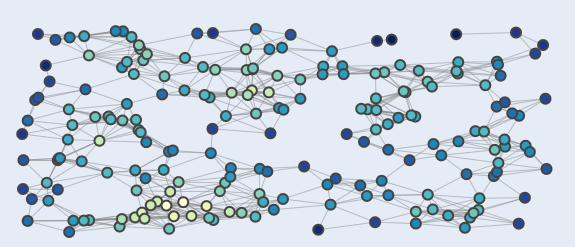


i think that this is a gerneral Beginner question - and yes:  if i can do this - if i achive this - then i guess that i would be able to lots of other things more with GIMP

Loook forward to hear from you 

greetings Smile
Reply
#2
Use the 'Select by Colour Tool', set Threshold 25, set the 'Select by Colour' mode to add (second icon from the left below the tekst 'Select by Colour) and click on a few blue dots (dark blue, light blue,... what you want). Then 'Select / Grow' set 2 pixels and copy the result to a new layer and make a new white layer (or the colour you like) below the 'dots' layer.

   
Reply
#3
hello dear Denzjos Smile

many thanks for the quick reply and for the input  - awesome  - and a great asset of GIMP-knowledge for me.  I am delighted. Your image - it shows great great achivements. 

as i understand that  - i can use "Color-Tool" 

and within that - i can set the threshold - to a "certain value"

BTW: you 


firstly: took the Threshold 25,  and afterwards  you set the 'Select by Colour' mode to add (second icon from the left below the tekst 'Select by Colour) 

and afterwards - you 

second: click on a few blue dots (dark blue, light blue,...) and then 

thirds:  'Select / Grow' set 2 pixels and copy the result to a new layer and make a new white layer (or the colour you like) below the 'dots' layer.


thank you so much. I will try out these steps at the weekend. 

you saved my day. 

have a great day. - greetings. 
Saint_M Smile

BTW:  you earned 10 stars out of 5 possible..  Heart


ps  and update:   

btw:


according to this thread here -   https://www.gimp-forum.net/Thread-color-...al-example

here a additional question:  how to apply the LCH-Ideas to  the above mentioned image - how to proceed!?


cf : see the link here  to the according description:  https://www.prasannamestha.com/blog/scie...-gradients
you recommended me this - in the above mentioned thread. 


the so called:  LCH Color Mode

Quote:LCH stands for Lightness, Chroma and Hue. It is pretty similar to HSL but is modelled after human vision. Oftentimes, it is referred to as HCL color mode.
HCL or LCH - however you may want to call it, provides a consistent lightness of colors as perceived by human eyes. I prefer this color mode as it enables us to generate gradients with consistent lightness. Here’s an example:
 

well - could i apply  this to the dots-collection in the image:; 

well i guess that  we need to work here -with two different layers/( or masks)?

How - and that is the question - how would you do this!?
on which way  and method would you apply the scale of various colors to the above mentioned image - with the dots. 


Can we apply the gradient with some kind of increasing "behaviour"  or "manner"!?

intended Structure: from Left (cold colors) to right (warm and hot  colors of the LCH-Gradiend... 


Look forward to hear from you

greetings.  Smile
Reply
#4
Not sure if it is what you are looking for but
once you get two colour layers you can try the LCH Chroma 'layer mode' (you will find this menu just above the layers dock ((LCH Chroma is near the bottom of the list)) and lessen the opacity as you want.

Smile
Reply
#5
(04-10-2026, 03:29 PM)hello dear denzjos hello dear Sallyanne  hello dear all first of all : many many thanks for the quick help and for all your explanation and idea-sharing. I am so glad  to be part of this great place. Its awesome. denzjos Wrote: Use the 'Select by Colour Tool', set Threshold 25, set the 'Select by Colour' mode to add (second icon from the left below the tekst 'Select by Colour) and click on a few blue dots (dark blue, light blue,... what you want). Then 'Select / Grow' set 2 pixels and copy the result to a new layer and make a new white layer (or the colour you like) below the 'dots' layer.

Dear denzjos  - and Sallyanne - i think that workin with the Threshold is pretty important - thank you so much!   


btw: just another question: 
[Image: attachment.php?aid=14361]

what if i want to connect some oft the dots with others - how would you do that - how would you try to achieve that!?

look forward to hear from you 

regards
saint_m  Smile
Reply
#6
First of all, you need to get rid of the white background around your dots.
1. Making sure your layer has an alpha channel, click on the fuzzy select tool (majic wand) and grow your selection 1 px.
2. Go to the colour menu and click on colour to alpha. Select none. Then add a transparent layer (on top first so you can see where to join).
3.Using the path tool to connect the dots you wish to, stopping at each dot.
4. After doing one path click on 'new path' (in the paths dialog right click on the path then new path) then do another path joining more dots etc.
5. After you have done as many as you need to, stroke your paths if doing the same colour, otherwise you will need to do them as you make them.
6. Drop this layer below the dots layer so the lines do not show through the dots.
7. Add another white layer assuming you still want white in the back and drop it to the bottom.
8. Merge all visible layers.
As for gradient, yes you can add one. Do the same as in step 1 then invert your selection
Using the gradient you want to use go from left to right making sure your shape is in linear

Smile
Reply
#7
(06-06-2026, 06:04 AM)sallyanne Wrote: Hi Sallyanne, Smile


thank you so much for this detailed and perfectly structured step-by-step guide! Your method of removing the white background first and then working with paths is a real game-changer for my project.

First of all, you need to get rid of the white background around your dots.
1. Making sure your layer has an alpha channel, click on the fuzzy select tool (majic wand) and grow your selection 1 px.
2. Go to the colour menu and click on colour to alpha.  Select none. Then add a transparent layer (on top first so you can see where to join).
3.Using the path tool to connect the dots you wish to, stopping at each dot.
4. After doing one path click on 'new path' (in the paths dialog right click on the path then new path) then do another path joining more dots etc.
5. After you have done as many as you need to, stroke your paths if doing the same colour, otherwise you will need to do them as you make them.
6. Drop this layer below the dots layer so the lines do not show through the dots.
7. Add another white layer assuming you still want white in the back and drop it to the bottom.
8. Merge all visible layers.
As for gradient, yes you can add one. Do the same as in step 1  then invert your selection
Using the gradient you want to use go from left to right making sure your shape is in linear

Many thanks for your in-depth-going and detailed explanation!

Your guide is fantastic, Sallyanne. Smile

Just a small addition based on my own experimentation (I’ve really caught the GIMP bug lately!): Another way to connect the dots would be to draw using the Paintbrush tool combined with the Shift key. You place a dot, then hold down the Shift key and click on the next dot to draw a perfectly straight line. However, your path-based method is much cleaner, especially when dealing with many lines. I just thought I’d mention it as a simple alternative for quick connections.


a quick question about your first step: You write, "Click on the Magic Wand tool and expand your selection by 1 px." What exactly is the purpose of this expansion?


Sallyanne, that tip about the color gradient is great. If I want to place the connected points onto a completely new background graphic (e.g., one with text and custom shapes), would I simply overlay the top layer (the points and lines) onto the new graphic using a layer mode like "Normal"? Or is there a more elegant way to do it?

i look forward to hear from you again 

greetings 
saint_m Smile
Reply
#8
The growing 1 pix after selection is just to make your removing the selected area cleaner. You may need to do it a larger number depending on the size of the original pic. Something I picked up because I didn't know to do it at first. Paths are a cleaner way when using it to stroke etc as paths go along the centre of the stroke. To join your dots you can also use the free select tool but you can undo the last path point if you make a mistake where as you cannot with the free select, you need to start again (I haven't found a way to undo the last point with that tool yet anyway)

If you want your image to have a transparent background you need to have a alpha channel. To keep it do not export as a jpg as it doesn't support transparency.

Add your new background graphic as a new layer while the dots layer is still transparent and drop that layer to the bottom


In gimp there are many ways to do similar things. Don't be afraid to try different ways to get to the same end. You will then find which you prefer.

Smile
Reply


Forum Jump: