Yesterday, 06:26 AM
(This post was last modified: Yesterday, 06:29 AM by IndiePubber.)
I'm trying to tint the merged image of the couple in this screenshot to be shades of the main color of the background.
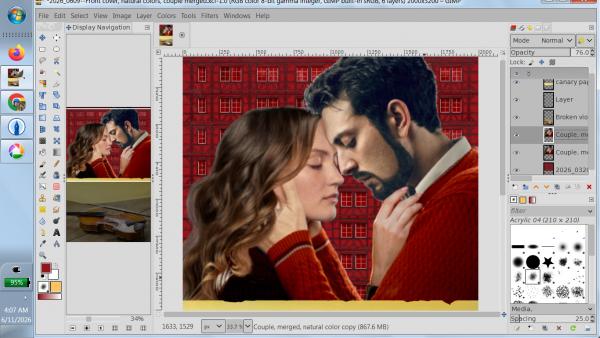
I have the hex code of the background red color (94151a), and with it, the RGB and HSV numbers. I've tried everything I could find under the Colors menu to plug these in to get the color I want, but with no success. The RGB numbers just make the faces look sick. I tried using Sample Points and Curves and tried matching the HSV there, but the result was the same.
The closest I get is when I use Colorize, but I'm just doing it by eye and the results are chancy at best. The cover, front and back, will have four or more images that need to match, and I'd like to do it scientifically if I can.
Am I missing a tool somewhere? Will using the HSV numbers do me better, and if so, where can I try?
I had to do the same thing with the cover of the first book in the series, and somehow managed it. But as I said, it was by sheer dumb luck.
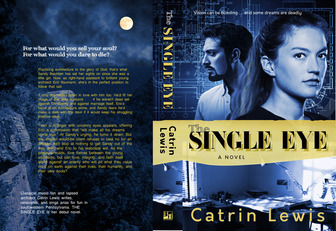
EDIT--- I also want to apply the same sort of "glow" to the background of the red cover that the blue one has, but that'll be a separate question.
I have the hex code of the background red color (94151a), and with it, the RGB and HSV numbers. I've tried everything I could find under the Colors menu to plug these in to get the color I want, but with no success. The RGB numbers just make the faces look sick. I tried using Sample Points and Curves and tried matching the HSV there, but the result was the same.
The closest I get is when I use Colorize, but I'm just doing it by eye and the results are chancy at best. The cover, front and back, will have four or more images that need to match, and I'd like to do it scientifically if I can.
Am I missing a tool somewhere? Will using the HSV numbers do me better, and if so, where can I try?
I had to do the same thing with the cover of the first book in the series, and somehow managed it. But as I said, it was by sheer dumb luck.
EDIT--- I also want to apply the same sort of "glow" to the background of the red cover that the blue one has, but that'll be a separate question.