




The obvious is a selection (boundary) has to contain some content, usually by copying but sometimes by cutting. What you use depends on the image.
For a scan like that, with a plain background.
First check that there is no transparency. Layer -> Transparency -> Add Alpha should be greyed out
Then in pictures:
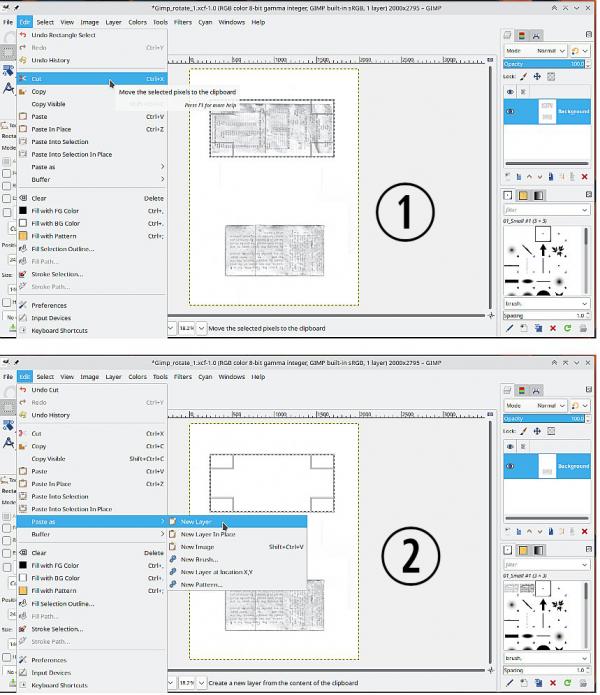
(1) Make the selection and cut it (ctrl-x)
(2) Paste that as a new layer
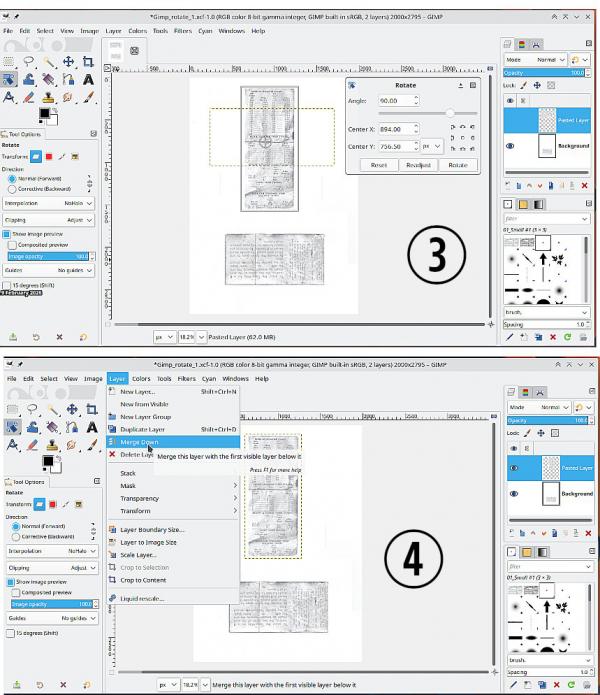
(3) Rotate (and move) as required.
(4) You can leave it in its own layer for future editing or merge back down into the base layer.
That is using a linux Gimp 2.10.38
For a scan like that, with a plain background.
First check that there is no transparency. Layer -> Transparency -> Add Alpha should be greyed out
Then in pictures:
(1) Make the selection and cut it (ctrl-x)
(2) Paste that as a new layer
(3) Rotate (and move) as required.
(4) You can leave it in its own layer for future editing or merge back down into the base layer.
That is using a linux Gimp 2.10.38