Posts: 5
Threads: 1
Joined: Apr 2026
Reputation:
0
Gimp version:
Operating system(s): Windows 11
I need to reduce the inseam of somebody's shorts.
The technique that I have thought about that can do this is to rotate her legs. So, I rotate one leg and then I rotate another leg.
However, this process leaves an absolutely unjustifiable white line that cannot be fixed.
Here are the details:
The original picture is this:
https://i.imgur.com/XVLBbZ9.jpeg
I load it into GIMP by Ctrl+Shift+V.
Then I use the free-form select to select the area that I want to rotate.
Here is the selection:
https://i.imgur.com/U9t5siP.jpeg
Then:
Edit -> cut
Edit -> Paste as -> Paste as single layer in place
In the Layers window (bottom-right of the screen), I move the new layer below the main layer.
At this point, it looks like this:
https://i.imgur.com/cqcRJdA.jpeg
Then, In the Layers window (bottom-right of the screen), I select the main layer, and add alpha channel to it.
Then I select the fuzzy select tool. Then I click inside that white area.
Then I press the Delete button.
As a result of that, the leg becomes visible THROUGH the hole in the main layer.
It looks like this:
https://i.imgur.com/YketQ4c.jpeg
Then I rotate the Leg layer.
Here is the result:
https://i.imgur.com/DxZfbhu.jpeg
Then I merge all the layers.
Then I flatten the image.
Here is the final result:
https://i.imgur.com/SDNYibB.jpeg
As you can see, the two triangular white shapes are justifiable side effects of the rotation, and I can easily fix them.
However the white line is ABSOLUTELY NOT a justifiable side effect of the rotation, because the rotation rotates the back layer (the leg) towards and partially to the back of the main layer. So it shouldn't create an empty space (an empty line) between the two layers.
Also, please note that fixing that white line is not possible (or maybe not easy) because it is right next to the sewing line of the zipper. If I use the heal tool to remove the white line, the sewing line will also be removed, which is absolutely not acceptable.
1. Why does that white line happen?
I really don't understand why this happens.
Can you please shed some light on this issue?
Please note that doing this same thing in other apps (for example Microsoft Paint) does NOT create that white line.
2. How can I avoid that white line?
3. If it is impossible to avoid it, how can I fix it?
Please help.
Thanks a lot for your help.
Nick P.
Posts: 7,976
Threads: 170
Joined: Oct 2016
Reputation:
1,090
Gimp version:
Operating system(s): Linux
You are using fuzzy select tool ? I think it is the wrong tool, free-select is better. Whichever one used, turn off any anti-aliasing option. I have seen transparent edge pixels become opaque when rotated. It is a bit of a bug that AFAIK never fixed.
You might want to try a different work-flow
Make your selection
Copy the selection, then close the selection.
Paste as a new layer
Rotate the layer.
A little video of that, I use Unified Transform but Rotate is ok . Only on leg https://sendvid.com/81bwqgvr 1 min 30 secs no audio.
Posts: 5
Threads: 1
Joined: Apr 2026
Reputation:
0
Gimp version:
Operating system(s): Windows 11
(04-20-2026, 03:03 PM)rich2005 Wrote: You are using fuzzy select tool ? I think it is the wrong tool, free-select is better. Whichever one used, turn off any anti-aliasing option. I have seen transparent edge pixels become opaque when rotated. It is a bit of a bug that AFAIK never fixed.
You might want to try a different work-flow
Make your selection
Copy the selection, then close the selection.
Paste as a new layer
Rotate the layer.
A little video of that, I use Unified Transform but Rotate is ok . Only on leg https://sendvid.com/81bwqgvr 1 min 30 secs no audio.
Thanks for your help.
I took your advice and unchecked the anti-aliasing, and that white line went away.
Now, instead of a white line, there is a sharp line (the break between two sides):
https://i.imgur.com/aqiswqc.jpeg
The areas on the background (for example the area between the two legs) where that break line happens, are very easy to fix. Those areas can be fixed even as easily as using the heal tool (pressing H).
But areas on the shorts where that break line happens, are very difficult to fix, because on the shorts, there are the natural "waves" (or bunching) of the fabric (or whatever they are called) and smoothing out the break line such that those fabric waves (or bunching) straddle the break line smoothly is difficalt.
I even have the Resynthesizer add-on, and I try to use it (Filters -> Resynthesizer -> Heal section):
https://i.imgur.com/OP9qdyn.jpeg
This add-on tool removes the break line , but the result is not a very smooth transition of those fabric waves (or bunching) across the break line.
How can I remove that break line while creating a smooth transition of those fabric waves acoss the two sections?
Please help.
Thanks a lot for your help.
Nick P.
Posts: 7,976
Threads: 170
Joined: Oct 2016
Reputation:
1,090
Gimp version:
Operating system(s): Linux
04-22-2026, 09:58 AM
(This post was last modified: 04-22-2026, 10:01 AM by rich2005.)
Just keep experimenting. Some obvious breaks between sections can be fixed with the clone tool or I tend to go for the smudge tool. Resynthesizer,- heal selection, using from sides is correct but it is a smallish image, try 10 pix sampling and Inwards towards Center.
Selections. If you are will to spend a little time, then making a path outline (then selection from path) might give a cleaner result. You do need to keep an eye on overlaps. Something like this.
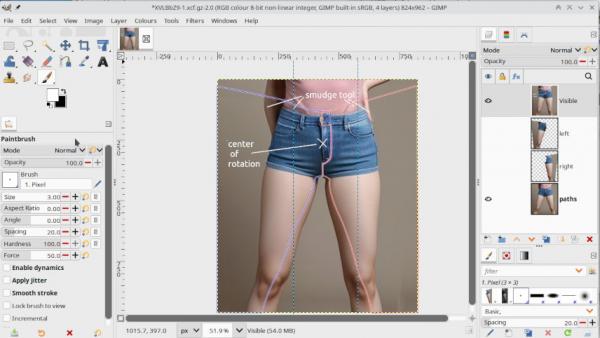
Then I fear it becomes a bit of an artistic exercise, patching any defect - hand - arm - shirt folds... I can get this.

I can't post on imgur, it is blocked in the UK  Keep looking in, someone might come up with a good procedure.
Posts: 5
Threads: 1
Joined: Apr 2026
Reputation:
0
Gimp version:
Operating system(s): Windows 11
(04-22-2026, 09:58 AM)rich2005 Wrote: Just keep experimenting. Some obvious breaks between sections can be fixed with the clone tool or I tend to go for the smudge tool. Resynthesizer,- heal selection, using from sides is correct but it is a smallish image, try 10 pix sampling and Inwards towards Center.
Selections. If you are will to spend a little time, then making a path outline (then selection from path) might give a cleaner result. You do need to keep an eye on overlaps. Something like this.
Then I fear it becomes a bit of an artistic exercise, patching any defect - hand - arm - shirt folds... I can get this.
I can't post on imgur, it is blocked in the UK Keep looking in, someone might come up with a good procedure.
Thanks for your help.
I could fix the problem.
However, I am still wondering if I approached the problem the right way and used the right strategy in the first place.
The original problem was this: The crotch area needed to change shape as per this picture:
https://i.ibb.co/mFqyQwJZ/zz-GIMP01-09.jpg
However, the above-mentioned change needed to happen in such a way that the two legs would not appear to be abnormally positioned or the shorts to appear to be loose in that area.
Taking all of those considerations into account, the solution that I could think of was to rotate the legs.
After all, rotating the legs, converts the shape of the crotch in the desired way, and it also results in the legs being put into very normal and believeable positions, and the shorts will not be loose in that area.
Now that the picture looks good, I still want to know what you think about my approach: The rotation of the legs.
Is it the right approach?
Or would you have approached this problem completely differently?
If you have any opinion on this, I would appreciate it if you shared it with me.
By the way, could you open the picture that I have attached in here? (It is not on imgur; it is on another site).
Please advise.
Thanks a lot for your help.
Nick P.
Posts: 712
Threads: 48
Joined: Oct 2016
Reputation:
49
Gimp version:
Operating system(s): Windows 10
Do you have feather selected on your selection tool?
Posts: 7,976
Threads: 170
Joined: Oct 2016
Reputation:
1,090
Gimp version:
Operating system(s): Linux
04-24-2026, 08:38 AM
(This post was last modified: 04-24-2026, 08:38 AM by rich2005.
Edit Reason: typo
)
(04-23-2026, 08:39 AM)NickPearl Wrote: Now that the picture looks good, I still want to know what you think about my approach: The rotation of the legs.
Is it the right approach?
Or would you have approached this problem completely differently?
If you have any opinion on this, I would appreciate it if you shared it with me.
You will develop your own ways of achieving a result, Just keep experimenting. There is always another way, I have my own preferences which usually not the most efficient For that particular image you could try the warp tool.
example: https://sendvid.com/ax5ta7aq 30 seconds, no audio.
Quote:By the way, could you open the picture that I have attached in here? (It is not on imgur; it is on another site).
Yes, that is ok, do not worry about Imgur, I can always fire up a Tor browser and view images there.
Posts: 5
Threads: 1
Joined: Apr 2026
Reputation:
0
Gimp version:
Operating system(s): Windows 11
04-24-2026, 01:07 PM
(This post was last modified: 04-24-2026, 01:36 PM by NickPearl.)
(04-24-2026, 02:48 AM)sallyanne Wrote: Do you have feather selected on your selection tool?
No.
Why?
I keep experimenting with GIMP.
So, I did that whole thing one more time.
I don't understand why the "Merge Down" option on the new layer is dimmed out:
https://i.ibb.co/ZkYYpjp/zz-GIMP01-10.jpg
It was also dimmed out the first time I did it. So that is not something new.
As a result of the "Merge Down" being mysteriously disabled, the only way I can merge down is to flatten the image.
So, I did that. I flattened the image (just like I had done so the previous time).
Here is the result of doing it the second time:
https://i.ibb.co/yFCHqFd1/zz-GIMP01-11.jpg
As I already said in one of the previous posts, the original problem (the white line at the joint line between the two layers) has been solved.
However, the two triangular empty unwanted sections that the rotation has added to the picture, this time are black.
The first time I had done that, those two unwanted triangular areas were white.
Regardless of the color (being white or black), it is easy to fix those unwanted triangular areas.
However, I am just astonished as to why the first time I did it, those areas were white and this time they are black?
I would appreciate it if you could shed some light on this:
1. Why the "Merge Down" is dimmed out?
2. Why the color of those unwanted triangular areas changed from white to black?
Please advise.
Thanks.
Nick P.
Posts: 14
Threads: 0
Joined: Mar 2026
Reputation:
0
Gimp version:
Operating system(s): Windows 10
(04-24-2026, 01:07 PM)NickPearl Wrote:
I keep experimenting with GIMP.
So, I did that whole thing one more time.
I don't understand why the "Merge Down" option on the new layer is dimmed out:
https://i.ibb.co/ZkYYpjp/zz-GIMP01-10.jpg
It was also dimmed out the first time I did it. So that is not something new.
As a result of the "Merge Down" being mysteriously disabled, the only way I can merge down is to flatten the image.
So, I did that. I flattened the image (just like I had done so the previous time).
Here is the result of doing it the second time:
https://i.ibb.co/yFCHqFd1/zz-GIMP01-11.jpg
As I already said in one of the previous posts, the original problem (the white line at the joint line between the two layers) has been solved.
However, the two triangular empty unwanted sections that the rotation has added to the picture, this time are black.
The first time I had done that, those two unwanted triangular areas were white.
Regardless of the color (being white or black), it is easy to fix those unwanted triangular areas.
However, I am just astonished as to why the first time I did it, those areas were white and this time they are black?
I would appreciate it if you could shed some light on this:
1. Why the "Merge Down" is dimmed out?
2. Why the color of those unwanted triangular areas changed from white to black?
Please advise.
Thanks.
Nick P.
Hi! "Merge Down" is turned off because you have the lowest layer in the stack selected - there's nothing to "merge down". If you seleck the top layer, you should have that option enabled.
Flatten removes transparency, which is why it turns to black.
Posts: 5
Threads: 1
Joined: Apr 2026
Reputation:
0
Gimp version:
Operating system(s): Windows 11
(04-24-2026, 02:54 PM)CmykStudent_ Wrote: (04-24-2026, 01:07 PM)NickPearl Wrote:
I keep experimenting with GIMP.
So, I did that whole thing one more time.
I don't understand why the "Merge Down" option on the new layer is dimmed out:
https://i.ibb.co/ZkYYpjp/zz-GIMP01-10.jpg
It was also dimmed out the first time I did it. So that is not something new.
As a result of the "Merge Down" being mysteriously disabled, the only way I can merge down is to flatten the image.
So, I did that. I flattened the image (just like I had done so the previous time).
Here is the result of doing it the second time:
https://i.ibb.co/yFCHqFd1/zz-GIMP01-11.jpg
As I already said in one of the previous posts, the original problem (the white line at the joint line between the two layers) has been solved.
However, the two triangular empty unwanted sections that the rotation has added to the picture, this time are black.
The first time I had done that, those two unwanted triangular areas were white.
Regardless of the color (being white or black), it is easy to fix those unwanted triangular areas.
However, I am just astonished as to why the first time I did it, those areas were white and this time they are black?
I would appreciate it if you could shed some light on this:
1. Why the "Merge Down" is dimmed out?
2. Why the color of those unwanted triangular areas changed from white to black?
Please advise.
Thanks.
Nick P.
Hi! "Merge Down" is turned off because you have the lowest layer in the stack selected - there's nothing to "merge down". If you seleck the top layer, you should have that option enabled.
Flatten removes transparency, which is why it turns to black.
Thanks for your response.
You said "Flatten removes transparency, which is why it turns to black."
This is the second time that I did the exact same thing (because I am experimenting with GIMP, so, I may do one same task twice, so that I remember it.
The first time I had done it, I had done the exact same thing: I had flattened the image in the end. And at that time the triangular areas where white. My screen prints in the first post show that.
I repeat that screen print in here:
https://imgur.com/SDNYibB
Why the first time I did it, it was white and the second time i did it it was black?
Please advise.
Thanks.
|