

Thread Rating:
  • 0 Vote(s) - 0 Average
  • 1
  • 2
  • 3
  • 4
  • 5
Selective transparency
#1
Hi,

Look, please, at the following image:
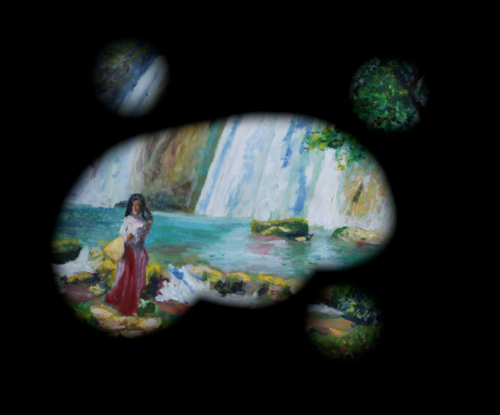
   

I wish to transform the big black area in transparency (but not the hair of the girl  Smile  ), and very important:
  • I need to draw the visible areas with my mouse,
  • I do not wish to work by deleting the areas that are going to become transparent.
Can someone have a way to do that ?

Thanks
Reply
#2
More than one way. One option is use a layer mask. Just one question, is the image the actual size ? A larger image might need the selection feather adjusting.

The black area is one large area so use the fuzzy select tool
Enable Feather Edges and set a value 12 to 16.
If Draw mask is enabled, click in the black and drag the mouse to show the extents of the selection. That adjusts the threshold as you drag (otherwise set the threshold 60 to 70).
Once you have the selection Layer -> Mask -> Add layer mask and choose options Selection and Invert mask
Kill the selection.

This a one minute video of that: https://sendvid.com/dlld18h4
Reply
#3
(02-03-2026, 03:40 PM)aka Wrote: I wish to transform the big black area in transparency (but not the hair of the girl  Smile  ), and very important:
  • I need to draw the visible areas with my mouse,
  • I do not wish to work by deleting the areas that are going to become transparent.

I don't understand the conditions you list at all.

But with the image at this size, I did this:

With the magic wand tool set to 0 tolerance, select the black region
Select > Grow ➤ 8 pixels
Select > Feather ➤ 20 pixels
Colors> Color to alpha, chose black

With the image at a different resolution, or another image, try different parameters until you find the right ones.
Reply
#4
Thanks, I now have some parts for my solution.

Pardon me, I think my first message wasn't clear enough.

The start image is the following one :


And I need to transform this image into another one, like the image of my first post (and I will not reduce the size), but the purpose is that the big black area (of the image of the first post) is not black, but is transparent.

Regarding the way I am looking to make the image, see the following video, and please "imagine" the black is transparency (the image would be invisible at the beginning of the video, and, step by step, some areas of the image would become visible) : https://streamable.com/5zi3ap

For example, the way of this other video (https://streamable.com/0gmgah) is the opposite one; and it is seriously less convenient for me, I really prefer the first one.

In other words, I am looking for a tool that:
  •  "open the view", or "show the image",
  •  but not "close the view", or "erase the image".
I hope my explanations are clear enough, is it ok?
Reply
#5
I think your explanation is OK.

You want to paint in the image but not use the erase tool. That is what a layer mask is for.

Very similar to previous video clip except
(1) Layer -> Mask -> Add Layer Mask and choose the white (100% Transparent ) option.
(2) Select a brush - I think one of the fuzzy brush for your requirement.
(3) Paint in the layer mask in black to erase (or white to unerase)

The point of the layer mask is, it is non-destuctive, you can go back at a later date and modify it, so always save your work as a Gimp .xcf.

If you want the edited image with transparency then export as a png.

Another one minute video example: https://sendvid.com/1fex2gn4
Reply
#6
Perfect !

Thanks !

Smile
Reply


Forum Jump: