04-10-2026, 01:59 PM
good day dear experts, hello everyone,
i am currenty workin on some preliminary steps for a new project.
i want to show a little image for illustration. Therefore i need a image with some dots.
I have a basic-image (which i want to use as a starting point.)
well -i need only the dots - that are blue - not the green ones and not the yellow ones.
how to achive this:
well i think that i can work here with layers - or "masks" : can ´t i?
that saidL i think that we re able to - let us say "to isolate a certain amount oif the dots"
So - if i could work with layers - then i would be able to achive a image where i only have a certain amound of dots left - the (above menitoned) blue ones
How would you do that: - how would you try to achieve that - to make sure that only this blue dots remain.
so the question is: – how would you approach this, what's the best way to proceed? Should I use layers or masks?
I think it should be possible to isolate a single color here – to focus on the dots with only one certain color - the blue oner: , so to speak – and extract them - so that those dots are what remains in the end.
Should I do this with layers (or layers) or masks?
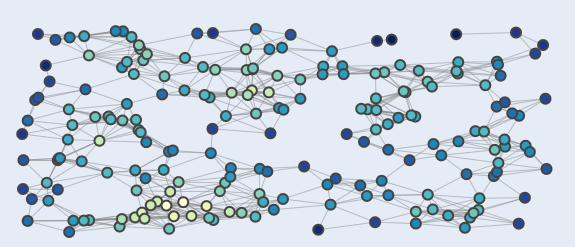
i think that this is a gerneral Beginner question - and yes: if i can do this - if i achive this - then i guess that i would be able to lots of other things more with GIMP
Loook forward to hear from you
greetings
i am currenty workin on some preliminary steps for a new project.
i want to show a little image for illustration. Therefore i need a image with some dots.
I have a basic-image (which i want to use as a starting point.)
well -i need only the dots - that are blue - not the green ones and not the yellow ones.
how to achive this:
well i think that i can work here with layers - or "masks" : can ´t i?
that saidL i think that we re able to - let us say "to isolate a certain amount oif the dots"
So - if i could work with layers - then i would be able to achive a image where i only have a certain amound of dots left - the (above menitoned) blue ones
How would you do that: - how would you try to achieve that - to make sure that only this blue dots remain.
so the question is: – how would you approach this, what's the best way to proceed? Should I use layers or masks?
I think it should be possible to isolate a single color here – to focus on the dots with only one certain color - the blue oner: , so to speak – and extract them - so that those dots are what remains in the end.
Should I do this with layers (or layers) or masks?
i think that this is a gerneral Beginner question - and yes: if i can do this - if i achive this - then i guess that i would be able to lots of other things more with GIMP
Loook forward to hear from you
greetings