06-25-2026, 09:38 PM
First of all, thanks to everyone who's been helping me along with my latest book cover.
As I posted in another thread, here's where I've gotten to with the front (I have the typography in another file and will layer it in when the graphics are complete).

I'm at a pretty good place, I think, with the color matching, but the Fachwerk background needs work to make it less one-dimensional and more lively. I'm aiming for the same background effect I had on the first book in the series. Its front cover looks like this:
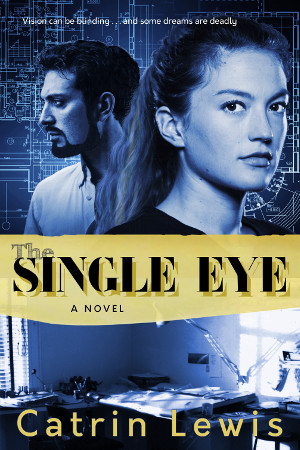
The blueprint background is a vector image licensed from Shutterstock and it came as you see it, with the highlights and shadows already on. I just moved it around behind the heads of my couple to get the halo effect I wanted.
The Fachwerk photo, on the other hand, was evenly-lit, with no variation of light and shadow. I think I can use Filters > Light and Shadow > Lighting Effects to give me some highlights, at least. But I'm having a hard time doing it correctly. I'm able to go into the Light tab and use the blue dot to add point-source glow, but . . .
Maybe I should ask if this Lighting Effects is even the best tool for the job. I had a bit of luck with Supernova, but it was tricky trying to eliminate all the rays. And even then, it's too star-bursty.
Thanks in advance for any pointers you can give.
As I posted in another thread, here's where I've gotten to with the front (I have the typography in another file and will layer it in when the graphics are complete).
I'm at a pretty good place, I think, with the color matching, but the Fachwerk background needs work to make it less one-dimensional and more lively. I'm aiming for the same background effect I had on the first book in the series. Its front cover looks like this:
The blueprint background is a vector image licensed from Shutterstock and it came as you see it, with the highlights and shadows already on. I just moved it around behind the heads of my couple to get the halo effect I wanted.
The Fachwerk photo, on the other hand, was evenly-lit, with no variation of light and shadow. I think I can use Filters > Light and Shadow > Lighting Effects to give me some highlights, at least. But I'm having a hard time doing it correctly. I'm able to go into the Light tab and use the blue dot to add point-source glow, but . . .
- How do I locate the light points so they're at the right position behind the models' heads? Yeah, I see the boxes with the X and Y axes, but I have no idea how to find those numbers in relation to the layer above.
- How do I make the glow radius smaller so I only get the light I want? Every time I try, even when I turn the intensity way down, it over-lights and overwhelms the whole background.
- I'm wondering why the Bloom tool options box keeps coming up, when I didn't select Bloom in the first place. I wouldn't mind experimenting with it, but when I try to use the sliders or enter a parameter, nothing happens.
- Would it help if I chose Transparent Background in the General Options dialogue? Would that create a new layer so I can move the light around on the Fachwerk image and put it where I want it? Or would that be "Create New Image"?
- Are there settings in Lighting Effects where I can create negative light, so to speak, and selectively put parts of my background in shadow? Or would that be a different tool?
Maybe I should ask if this Lighting Effects is even the best tool for the job. I had a bit of luck with Supernova, but it was tricky trying to eliminate all the rays. And even then, it's too star-bursty.
Thanks in advance for any pointers you can give.