
Bonjour,
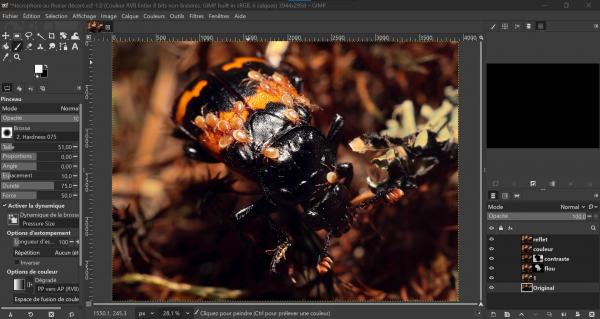
Je suis bloqué sur un problème de réflexion de flash sur l'insecte que j'ai pris en photo de nuit. Y'a t il un moyen d'adoucir ce reflet ?
J'ai essayer avec l'outil sélection sans pour autant réussir à ne sélectionner uniquement la partie souhaiter.
Les tutos que j'ai pu chercher ne donne pas la marche à suivre spécifique pour mon problème
Le premier screenshot vous montre la photo retouché avec les connaissances que j'ai (je n'ai pas pu faire mieux) et le second screenshot montre la photo originale.
J'utilise la version 3.2.4 de GIMP sous windows 10.
Merci pour votre aide
English :
Hello,
I'm stuck on a problem with a flash reflection on the insect I photographed at night. Is there a way to soften this reflection?
I tried using the selection tool but wasn't able to select just the part I wanted.
The tutorials I’ve found don’t provide specific instructions for my problem.
The first screenshot shows the photo I’ve edited using what I know (I couldn’t do any better), and the second screenshot shows the original photo.
I’m using GIMP version 3.2.4 on Windows 10.
Thank you for your help

Je suis bloqué sur un problème de réflexion de flash sur l'insecte que j'ai pris en photo de nuit. Y'a t il un moyen d'adoucir ce reflet ?
J'ai essayer avec l'outil sélection sans pour autant réussir à ne sélectionner uniquement la partie souhaiter.
Les tutos que j'ai pu chercher ne donne pas la marche à suivre spécifique pour mon problème
Le premier screenshot vous montre la photo retouché avec les connaissances que j'ai (je n'ai pas pu faire mieux) et le second screenshot montre la photo originale.
J'utilise la version 3.2.4 de GIMP sous windows 10.
Merci pour votre aide
English :
Hello,
I'm stuck on a problem with a flash reflection on the insect I photographed at night. Is there a way to soften this reflection?
I tried using the selection tool but wasn't able to select just the part I wanted.
The tutorials I’ve found don’t provide specific instructions for my problem.
The first screenshot shows the photo I’ve edited using what I know (I couldn’t do any better), and the second screenshot shows the original photo.
I’m using GIMP version 3.2.4 on Windows 10.
Thank you for your help