




Ahhh.....no
You get a layer mask from Layers -> Mask -> Add Layer Mask https://docs.gimp.org/2.8/en/gimp-layer-mask-add.html
...and that acts on the layer it is attached to.
Various options to choose when adding a mask, the one that is applicable in this case is from a selection.
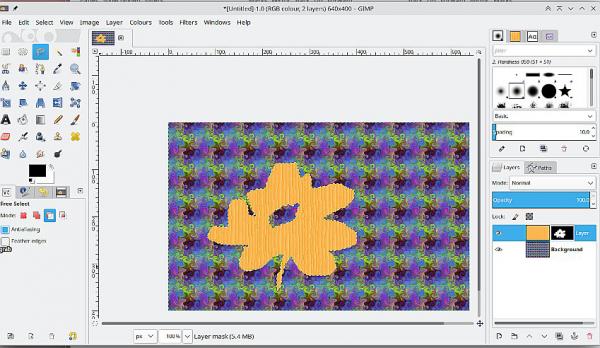
Edit: Fire up the old Gimp 2.8: The layer mask acts as a window on the layer underneath. Black is transparent white is opaque. You can paint in the layer mask to modify it. Note the border indicates if the layer mask is active / not active. Just takes a little practice.
You get a layer mask from Layers -> Mask -> Add Layer Mask https://docs.gimp.org/2.8/en/gimp-layer-mask-add.html
...and that acts on the layer it is attached to.
Various options to choose when adding a mask, the one that is applicable in this case is from a selection.
Edit: Fire up the old Gimp 2.8: The layer mask acts as a window on the layer underneath. Black is transparent white is opaque. You can paint in the layer mask to modify it. Note the border indicates if the layer mask is active / not active. Just takes a little practice.


