Posts: 6
Threads: 1
Joined: Jun 2026
Reputation:
0
Gimp version:
Operating system(s): Windows 11
 06-08-2026, 11:03 AM
Greetings!
I'm new here and still quite new to GIMP as well.
During the past weeks, I spent a lot of time on learning how to use this software and on working on my first projects. I'm a comic drawer and create different sorts of printed products with my images.
It wasn't before yesterday that I opened a file to realise that one of its layers had disappeared - the most important one I had spent many hours of work on. I opened a backup file just to see that the same layer was gone there too. I was extremely lucky to have created a third file where I had put all layers together just for a mixed demo print; so the visible data in it allowed me to restore the missing layer.
I had no idea what could have led to that incident; but I've ended up creating dozens of backup files on different drives.
However, this morning, just the same thing happened again with two other files on an external HDD. In one file, the main image was gone, in another one, a text layer. Now I'm scared even to open any other files with GIMP because I never know what it would do to them! It's dozens of hours of work that are at risk.
Is there any obvious reason for that problem to appear?
In this forum, I've read that somebody who had had the same issue had made a mistake by messing up invisible and visible layers or groups of layers. I'm not sure what exactly he has done; but I never created groups of layers; and all of my files' layers are visible. I've created raw files that contain basic elements such as textfields, backgrounds and borders; and I use to integrate my drawn and scanned pictures into those files as layers (by "open as layer"). Then I use to colorise the black/white images in there and leave the files the way they are structured, with all their layers.
Such a file's layer tree may look like this:
- Text
- Logo
- Border
- Background
- Cutting additive
- Signature
- Image
I use GIMP 3.2.4 on Windows 11; and I've got my files saved on a USB stick and an external Backup HDD.
I'm quite sure that the problem is a bug and not due to wrong usage as I haven't made any obvious mistake; but I'm wondering if there's a way to work around it. Maybe I should transfer the files to the system HDD before opening them? 
Any hints would be highly appreciated!
Posts: 8,100
Threads: 174
Joined: Oct 2016
Reputation:
1,115
Gimp version:
Operating system(s): Linux
06-08-2026, 12:48 PM
(This post was last modified: 06-08-2026, 01:35 PM by rich2005.
Edit Reason: typos
)
(06-08-2026, 11:03 AM)ink_stroke Wrote: ..snip..
During the past weeks, I spent a lot of time on learning how to use this software and on working on my first projects. I'm a comic drawer and create different sorts of printed products with my images.
It wasn't before yesterday that I opened a file to realise that one of its layers had disappeared - the most important one I had spent many hours of work on.
I had no idea what could have led to that incident; but I've ended up creating dozens of backup files on different drives.
However, this morning, just the same thing happened again with two other files on an external HDD. In one file, the main image was gone, in another one, a text layer. Now I'm scared even to open any other files with GIMP because I never know
Any hints would be highly appreciated!
It has never happened to me unless I make the mistake, maybe a do a merge down by error and lose a layer. If you spot it then you can undo.
What format are you saving the files ? - Gimp xcf I hope. Some multi-layer formats .psd / tiff / .ora might lose some properties such as editable text.
Are you using any of the new functions such as linked layers. ?
Always sensible to make backups.
To save a little bit of effort there is a Gimp 3 autosave here: https://script-fu.github.io/funky/hub/pl...-autosave/ Actually 2 links the almost-autosave .zip is separate from the installation help. I have tried this in the past and it worked then.
Do you have any of those references where users have lost layers ? No good giving me Reddit / Facebook / anything-social.
Posts: 6
Threads: 1
Joined: Jun 2026
Reputation:
0
Gimp version:
Operating system(s): Windows 11
Thanks for your reply!
(06-08-2026, 12:48 PM)rich2005 Wrote: It has never happened to me unless I make the mistake, maybe a do a merge down by error and lose a layer. If you spot it then you can undo.
I can guarantee that I did not accidently delete or merge any of those layers. One layer, an "Image" one, disappeared in two different files that represented two different states of the same project. In another case, a text layer disappeared that had been there and untouched for weeks. The files were alright when I closed them, and they were flawed when I reopened them - in two cases shortly after closing them, in two cases the next day. I always remove USB devices properly.
(06-08-2026, 12:48 PM)rich2005 Wrote: What format are you saving the files ? - Gimp xcf I hope. Some multi-layer formats .psd / tiff / .ora might lose some properties such as editable text.
Yes, I work with xcf files only.
(06-08-2026, 12:48 PM)rich2005 Wrote: Are you using any of the new functions such as linked layers. ?
That's an interesting question. Only now that you've asked me that and that I've checked the program have I realised that there are 2 similar options under File: Open as Layers and Open as Link Layer. It's very likely that I've opened some of the image files as link layers; but I've no idea what that means and what the difference between the two options may be. Is the link-layer function known to cause any problems? It would be very strange though if that had something to do with the lost textfield.
(06-08-2026, 12:48 PM)rich2005 Wrote: Do you have any of those references where users have lost layers ? No good giving me Reddit / Facebook / anything-social.
Yes; here you are:
https://www.gimp-forum.net/Thread-Lost-L...ter-saving
Many thanks again for your engagement!
Posts: 8,100
Threads: 174
Joined: Oct 2016
Reputation:
1,115
Gimp version:
Operating system(s): Linux
06-08-2026, 04:12 PM
(This post was last modified: 06-08-2026, 04:15 PM by rich2005.)
I have no real solution only some thoughts. Gimp .xcf files could be corrupted with large images and the image closed before saving was complete. The file totally unreadable. As far as I know that was fixed. You could open a "just saved" xcf and check for errors before closing the image and moving on to the next project.
A linked layer, is a reference to an external image. It allows the user to adjust the external image with some other program, save it, and the Gimp layer is updated automatically. I have tried adding a link layer, saving a xcf, closing Gimp, deleting the external image and it was still ok when I reopened in Gimp.
A couple of things to look at,
If you have any layer effects - That (fx) icons in the layers dock maybe flatten those before saving.
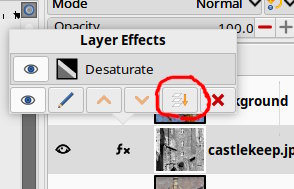
Layers larger than the canvas ? Then Image -> Fit Canvas to Layers.
I could only find those ancient posts about losing layers as well.
Posts: 6
Threads: 1
Joined: Jun 2026
Reputation:
0
Gimp version:
Operating system(s): Windows 11
06-08-2026, 06:31 PM
(This post was last modified: 06-08-2026, 06:31 PM by ink_stroke.)
Many thanks for your reply!
(06-08-2026, 04:12 PM)rich2005 Wrote: I have no real solution only some thoughts. Gimp .xcf files could be corrupted with large images and the image closed before saving was complete. The file totally unreadable. As far as I know that was fixed. You could open a "just saved" xcf and check for errors before closing the image and moving on to the next project.
A linked layer, is a reference to an external image. It allows the user to adjust the external image with some other program, save it, and the Gimp layer is updated automatically. I have tried adding a link layer, saving a xcf, closing Gimp, deleting the external image and it was still ok when I reopened in Gimp.
It is true that I work with large images - A4 pages that have a depth of 1200 ppi, JPEG layers that are several hundred MB large. Usually I wait for the files to be saved before closing the program; but it might have come to happen that I closed it too early. That might be at least a possible explanation for the text layer's disappearing - the file being corrupted in any weird way.
It's very good to know that linked layers affect data outside the XCF file. That explains fairly well why one of my image layers was gone in several different files. I will surely never use linked layers again!
I do not use any layer effects; but I use to add and arrange different drawings from different files or from the same file on the main image layer and merge them.
I will now try my best to backup and recreate my files keeping all those points in mind. I will copy the linked layers' image data to make them original layers in new files. In case the issue remained to occure, I'll post it here.
Thanks a ton for your information! 
Posts: 6
Threads: 1
Joined: Jun 2026
Reputation:
0
Gimp version:
Operating system(s): Windows 11
 06-09-2026, 01:36 PM
(This post was last modified: 06-09-2026, 02:12 PM by ink_stroke.)
06-09-2026, 01:36 PM
(This post was last modified: 06-09-2026, 02:12 PM by ink_stroke.)
I didn't expect to be back this soon; but this program is indeed giving me pure terror.
Just before, I opened the main raw file I mentioned above - the one I use to integrate my drawn images into - and could already see in the little preview icon that some objects were missing. When it was loaded, it was clear that only 2 of 6 layers were still there; a text layer, a filled background part, my signature image and a vector graphic had been removed. I plugged in my backup drive for the backup file, and it was the same. The backup file was last changed 8 days ago while I had opened and changed the original file just yesterday; so there's no obvious connection between the two files and any changes I had made yesterday that could have affected the backup file on the other drive that was probably not even plugged in. All I did yesterday anyway with the original file was slightly to change the background colour; so I guess that there's just something going wrong within the program itself, making it kill layers for whatever reason while loading the files.
Despite having spent a fair amount of time on figuring out how to use GIMP for my purposes, and having come to like it, I guess that now I'll have to look for a similar program as I do not want to risk to lose so much work to come.
Anyway, am I really the only person in the world experiencing this issue? It didn't occure here before last weekend; but since then, it does every day.
Posts: 8,100
Threads: 174
Joined: Oct 2016
Reputation:
1,115
Gimp version:
Operating system(s): Linux
06-09-2026, 02:19 PM
(This post was last modified: 06-09-2026, 03:49 PM by rich2005.)
(06-09-2026, 01:36 PM)ink_stroke Wrote: I didn't expect to be back this soon; but this program is indeed giving me pure terror.
Just before, I opened the main raw file I mentioned above - the one I use to integrate my drawn images into - and could already see in the little preview icon that some objects were mi ssing. When it was loaded, it was clear that only 2 of 5 layers were still there; a text layer, a filled background part, my signature image and a vector graphic had been removed.
..snip..
Anyway, am I really the only person in the world experiencing this issue? It didn't occure here before last weekend; but since then, it does every day. .
In the mean time I have been trying all sorts of ways to lose layers between saving an image and reopening at a later date. Without any sucess.
I know...never the user... always the program.
My guess is it is something in your workflow or maybe your Windows Gimp installation. If you get a chance with one of your projects about to save, go into Windows -> Dockable Dialogues -> Dashboard (bottom of menu) Take a screen shot and post it here.
Maybe someone will spot lack of resources or some problem.
Edit: Something like this: If you are maxing out memory or starting to use the swap space then your installation is short of resources.
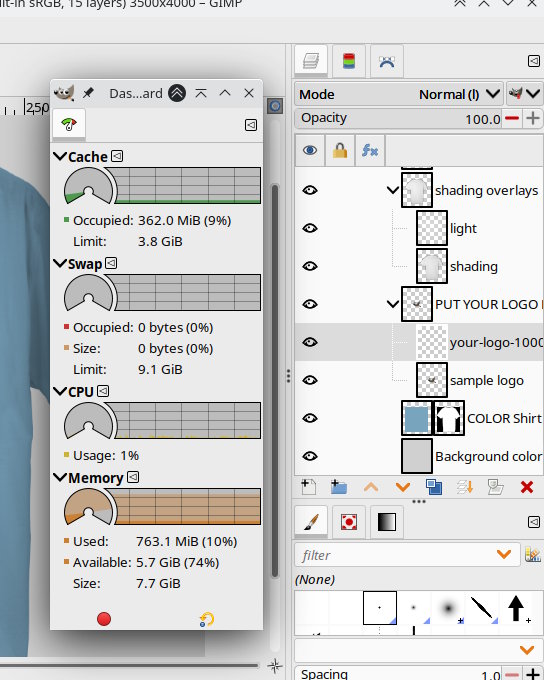
Edit again: Much as I dislike Reddit, a Google search does come up with similar issue: This one maybe
https://www.reddit.com/r/GIMP/comments/1...howing_up/
Otherwise, you could use some other program, Maybe Krita or Paint.Net
Posts: 135
Threads: 14
Joined: Jun 2019
Reputation:
23
Gimp version:
Operating system(s): Linux
It would help to confirm if the fault is on gimp's saving the .xcf file or on loading it.
One clue would be file size, a saved file with missing layers would be smaller.
I suggest looking at the .xcf files outside of gimp to see what layers are present.
Do you have imagemagick, available here. https://imagemagick.org
To use imagemagick to see what layers there are do: identify filename.xcf
For an example here's what I got for one of my .xcf files with 10 layers it shows the layer offsets, width and height of each layer:
Code:
$ identify pipecleaner-stick-man-03.xcf

pipecleaner-stick-man-03.xcf[0] XCF 391x602 391x602+0+0 8-bit sRGB 0.010u 0:00.011

pipecleaner-stick-man-03.xcf[1] XCF 391x131 391x131+0+471 8-bit sRGB 0.010u 0:00.014

pipecleaner-stick-man-03.xcf[2] XCF 57x236 57x236+168+322 8-bit sRGB 0.020u 0:00.015

pipecleaner-stick-man-03.xcf[3] XCF 64x190 64x190+110+218 8-bit sRGB 0.020u 0:00.016

pipecleaner-stick-man-03.xcf[4] XCF 39x156 39x156+153+183 8-bit sRGB 0.020u 0:00.017

pipecleaner-stick-man-03.xcf[5] XCF 49x266 49x266+145+322 8-bit sRGB 0.020u 0:00.017

pipecleaner-stick-man-03.xcf[6] XCF 90x132 90x132+119+79 8-bit sRGB 0.020u 0:00.018

pipecleaner-stick-man-03.xcf[7] XCF 83x185 83x185+151+53 8-bit sRGB 0.020u 0:00.019

pipecleaner-stick-man-03.xcf[8] XCF 124x535 124x535+110+53 8-bit sRGB 0.020u 0:00.023

pipecleaner-stick-man-03.xcf[9] XCF 391x602 391x602+0+0 8-bit sRGB 0.040u 0:00.036
Posts: 113
Threads: 0
Joined: Mar 2024
Reputation:
12
Gimp version:
Operating system(s): Linux
@OP: are you sure your harddisk /SSD is ok?
Just thinking as we experienced that some weeks ago here at home.
First "strange" things happening about images until we realized it was the hard disk at life's end.
Posts: 6
Threads: 1
Joined: Jun 2026
Reputation:
0
Gimp version:
Operating system(s): Windows 11
06-11-2026, 01:28 PM
(This post was last modified: 06-11-2026, 01:38 PM by ink_stroke.)
Many thanks for your replies!
Your writings about hardware reminded me of an incident that took place here on May 31st: My house was struck by a lightning. I can't remember if I was working on my images just then. What I do remember is that I was just looking at my Deponia-desktop wallpaper, and then the screen suddenly going super-bright for a second as the lightning struck the building. I hadn't experienced anything alike before. Usually, I don't use my computer when there is a lightning storm; but that one had just begun and seemed to be very distant. I was very shocked and turned off my computer quickly, hoping that it hadn't got damaged.
Later, I checked my devices. None of them seemed to be damaged while my neighbour's modem was broken; so I seemed to be lucky. By now, I can not tell if the issues with my files are due to that lightning strike; but it is for sure that they began around that time.
Yes, I said "around that time" even though I've stated that the loss of layers hadn't happened before last weekend. It's because now I remember another issue that happened more than a week ago and that I didn't think of when writing about the layers: One morning, I opened two files I had been working on the day before, and both of them had corrupted image layers in them, showing only parts of the original images, the rest of the pages being completely grey. It was not only the image layers, but also the original JPG source files that looked like that. This is what one of those files looks like now (not the original file, only a screenshot):

I have no idea if I had had those files opened during the lightning strike, nor when exactly I realised the issue. The files' details say that they had last been changed on May 29th.
(06-09-2026, 06:52 PM)MrsP-from-C Wrote: @OP: are you sure your harddisk /SSD is ok?
Just thinking as we experienced that some weeks ago here at home.
First "strange" things happening about images until we realized it was the hard disk at life's end.
Thanks for that hint! May I ask how you came to the conclusion that your disk was broken?
Yesterday, I spent the whole day checking all of my disks with chkdsk, a built-in Windows tool. There wasn't a single error found; although I don't know what it said to my Windows drive because it shut itself down automatically when it was finished there; and it showed a wrong time remaining.
(06-09-2026, 02:19 PM)rich2005 Wrote: I know...never the user... always the program.
Yes, indeed!
I've also checked my RAM bars with memtest. According to it, they are all fine.
(06-09-2026, 06:42 PM)teapot Wrote: It would help to confirm if the fault is on gimp's saving the .xcf file or on loading it.
One clue would be file size, a saved file with missing layers would be smaller.
I suggest looking at the .xcf files outside of gimp to see what layers are present.
Do you have imagemagick, available here. https://imagemagick.org
To use imagemagick to see what layers there are do: identify filename.xcf
For an example here's what I got for one of my .xcf files with 10 layers it shows the layer offsets, width and height of each layer:
Code:
$ identify pipecleaner-stick-man-03.xcf

pipecleaner-stick-man-03.xcf[0] XCF 391x602 391x602+0+0 8-bit sRGB 0.010u 0:00.011

pipecleaner-stick-man-03.xcf[1] XCF 391x131 391x131+0+471 8-bit sRGB 0.010u 0:00.014

pipecleaner-stick-man-03.xcf[2] XCF 57x236 57x236+168+322 8-bit sRGB 0.020u 0:00.015

pipecleaner-stick-man-03.xcf[3] XCF 64x190 64x190+110+218 8-bit sRGB 0.020u 0:00.016

pipecleaner-stick-man-03.xcf[4] XCF 39x156 39x156+153+183 8-bit sRGB 0.020u 0:00.017

pipecleaner-stick-man-03.xcf[5] XCF 49x266 49x266+145+322 8-bit sRGB 0.020u 0:00.017

pipecleaner-stick-man-03.xcf[6] XCF 90x132 90x132+119+79 8-bit sRGB 0.020u 0:00.018

pipecleaner-stick-man-03.xcf[7] XCF 83x185 83x185+151+53 8-bit sRGB 0.020u 0:00.019

pipecleaner-stick-man-03.xcf[8] XCF 124x535 124x535+110+53 8-bit sRGB 0.020u 0:00.023

pipecleaner-stick-man-03.xcf[9] XCF 391x602 391x602+0+0 8-bit sRGB 0.040u 0:00.036
Thanks!
I've tried that with a corrupted file. The tool threw an error message. This is what it said:
Code:
C:\Users\Andreas>identify F:\C05_blank.xcf

identify: not enough pixel data `F:\C05_blank.xcf' @ error/xcf.c/ReadXCFImage/1495.


C:\Users\Andreas>identify F:\C05.xcf

F:\C05.xcf[0] XCF 9920x6992 9920x6992+95+95 8-bit sRGB 2.238u 0:02.237

F:\C05.xcf[1] XCF 10110x7182 10110x7182+0+0 8-bit sRGB 4.465u 0:04.464

F:\C05.xcf[2] XCF 9920x6992 9920x6992+95+95 8-bit sRGB 6.583u 0:06.583

F:\C05.xcf[3] XCF 4116x5012 4116x5012+5477+1653 8-bit sRGB 7.217u 0:07.217

F:\C05.xcf[4] XCF 230x300 230x300+8903+5250 8-bit sRGB 7.221u 0:07.221

F:\C05.xcf[5] XCF 4019x909 4019x909+5523+567 8-bit sRGB 7.354u 0:07.353

F:\C05.xcf[6] XCF 4760x465 4760x465+287+6378 8-bit sRGB 7.495u 0:07.495
(The second file's alright.)
Corrupted files are very large - as if they contained all the missing parts!
(06-09-2026, 02:19 PM)rich2005 Wrote: (06-09-2026, 01:36 PM)ink_stroke Wrote: I didn't expect to be back this soon; but this program is indeed giving me pure terror.
Just before, I opened the main raw file I mentioned above - the one I use to integrate my drawn images into - and could already see in the little preview icon that some objects were mi ssing. When it was loaded, it was clear that only 2 of 5 layers were still there; a text layer, a filled background part, my signature image and a vector graphic had been removed.
..snip..
Anyway, am I really the only person in the world experiencing this issue? It didn't occure here before last weekend; but since then, it does every day. .
In the mean time I have been trying all sorts of ways to lose layers between saving an image and reopening at a later date. Without any sucess.
I know...never the user... always the program.
My guess is it is something in your workflow or maybe your Windows Gimp installation. If you get a chance with one of your projects about to save, go into Windows -> Dockable Dialogues -> Dashboard (bottom of menu) Take a screen shot and post it here.
Maybe someone will spot lack of resources or some problem.
Edit: Something like this: If you are maxing out memory or starting to use the swap space then your installation is short of resources.
Edit again: Much as I dislike Reddit, a Google search does come up with similar issue: This one maybe
https://www.reddit.com/r/GIMP/comments/1...howing_up/
Otherwise, you could use some other program, Maybe Krita or Paint.Net
Thanks for your effort and suggestions!
I don't think that my hardware was too weak. I've got a Pentium i5 with 6 cores and 16 GB DDR4 RAM. This is what GIMP's dashboard says about it:
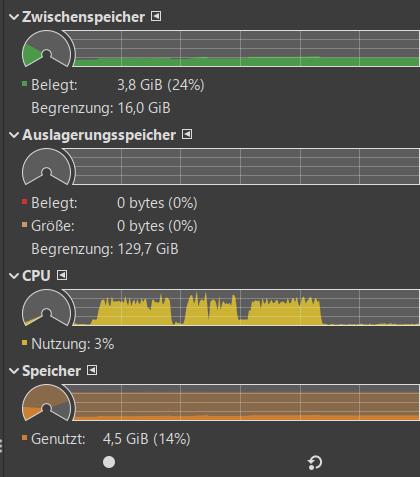
Today, I saved the broken files' contents by recomposing the files, taking care not to use linked layers or parts from broken files. When I opened some of the broken ones, I realised that GIMP showed this message in the bottom line:

So what does all of that mean now? It doesn't seem very likely to me; but I think it possible that the lightning strike may have damaged both the XCF files and the JPG files that may have been included in those files as linked layers, or that I switched my computer off too quickly so that the opened files could not be saved. It's also possible that I then copied those files to my backup disk so that I later got a family tree of several corrupted files everywhere around.
I have no idea how realistic that sounds; but for now, I guess I can not do much more than work with the files that have for sure not been corrupted, hoping that the issues aren't going to appear again.
Many thanks for now! 
|